 Print Room HQ
Free tool · Stockroom Helper

Stockroom Helper Every model on your PC, in your print room
Your Downloads folder is full of STLs, 3MFs and zips from MakerWorld, Printables and Thingiverse. Stockroom Helper puts all of them in Print Room HQ’s Stockroom, with a picture of each, so you can find the one you want from the print room’s screen, see which printer can print it right now, and queue it.
Version 1.1.0 · Windows and Mac · free
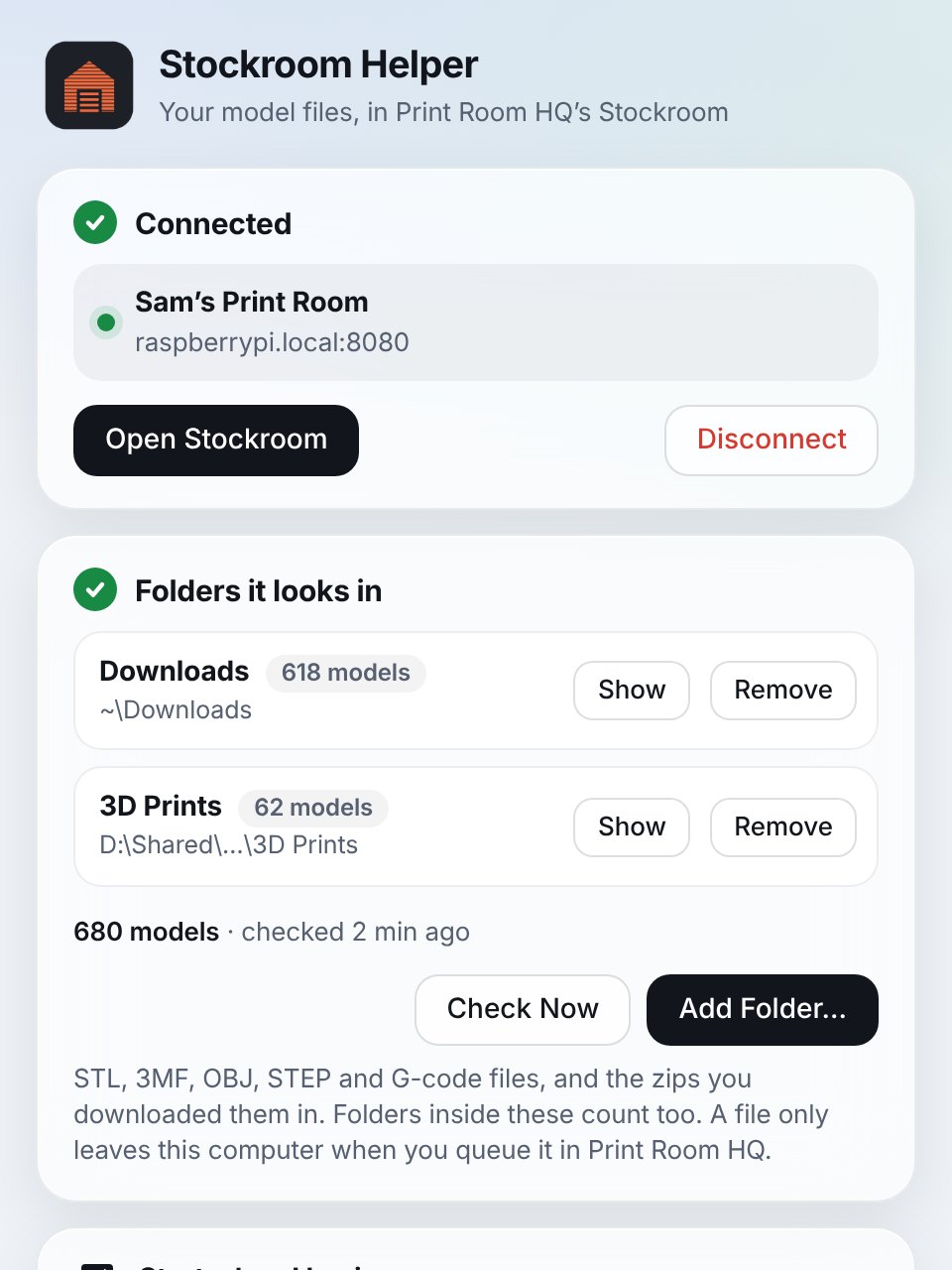
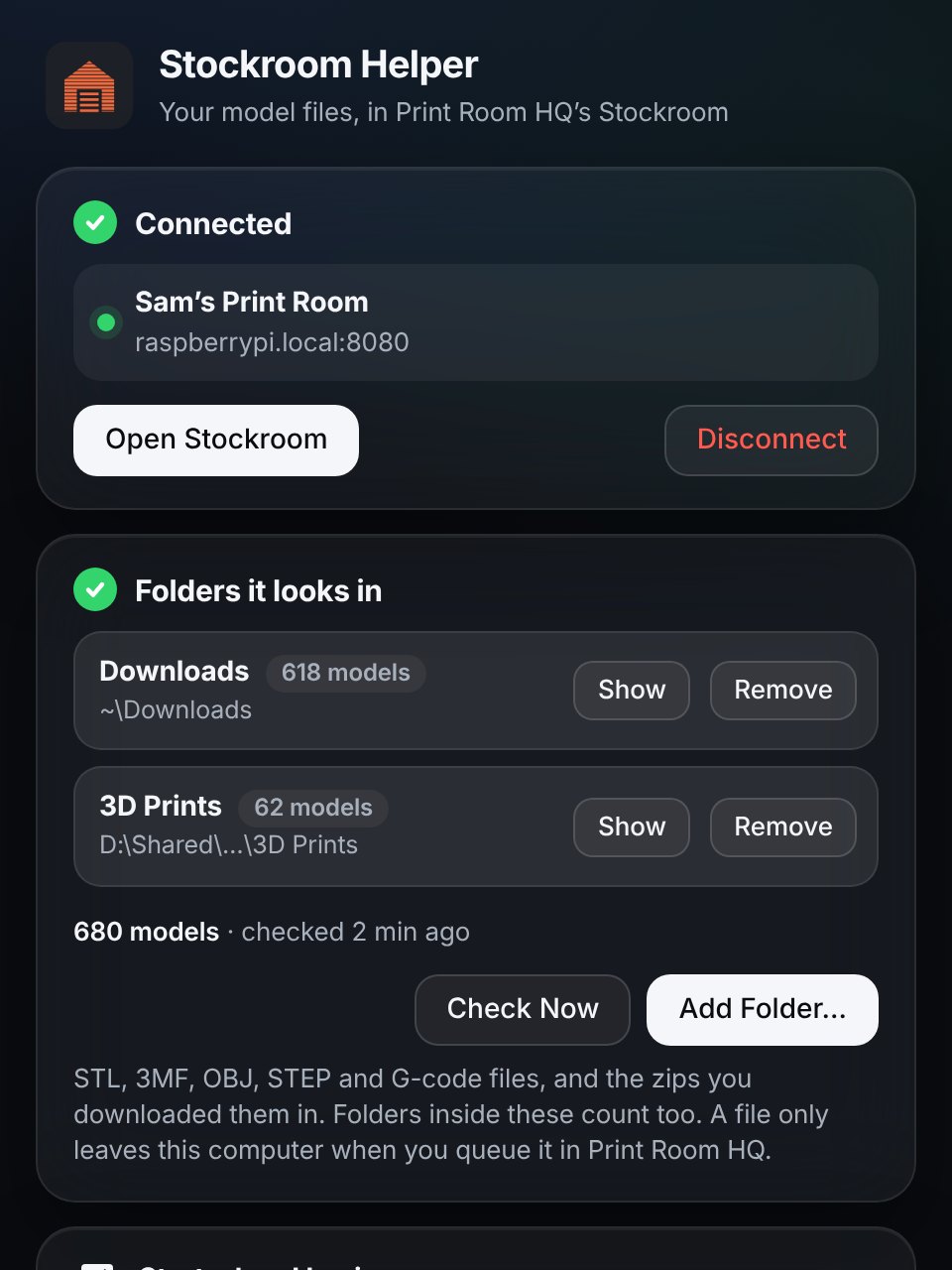
Stop digging through Downloads
See every model
A picture of each file, even the STLs inside a zip and STEP files from a CAD program. Designer, license and where it came from, when the file says.
Know what prints now
Sliced files show which printer has the right filament loaded and is free: Prints now on X1C, or Needs PETG loaded. Search by name, material, printer or print time.
Queue it from anywhere
Tap Queue it on the print room screen or your phone and the Helper sends the file over. Or open it in your slicer on the PC, right from the deck.
Find the copies
Downloaded the same model three times? The Stockroom groups the copies, shows the space they take, and can move the extras to the Recycle Bin or Trash.
Always up to date
New downloads show up by themselves. It starts when you log in and waits quietly in the system tray or the menu bar.
Your printers at a glance
Every printer on your deck in the menu bar or the tray: what needs you first, then prints by soonest done, with progress and time left. On a Mac the next print’s time sits right beside the icon. Print Room HQ 3.12 or later.
Bring your printers over
Already set up in Bambu Studio or OrcaSlicer? The Helper sends those printers to your deck, access codes and all, and you add them there in one click. Nothing to type off the printer’s screen.
A heads-up right here
Switch it on and the Helper tells you on this computer when a printer needs you or a print is done, handy when your phone is in the other room.
Your files stay put
Only the list and small pictures go to your deck, over your own network. A file leaves your computer only when you queue it. Nothing is uploaded anywhere else.
Windows
Download for Windows- Open the downloaded StockroomHelper-Setup. It installs in a few seconds, just for you (no administrator password), and opens the Helper.
- It isn’t code-signed yet, so Windows may say it protected your PC: click More info › Run anyway.
- It’s in the Start menu, and in the system tray by the clock while it runs.
Mac
Download for Mac- Open the installer. It puts Stockroom Helper in Applications.
- macOS blocks it the first time, because it isn’t notarized by Apple yet. In the warning, click Done (not Move to Trash). Then open System Settings › Privacy & Security, scroll down to Security, click Open Anyway next to its name, enter your password and click Open. You only do this once.
- Have Tessiq? You don’t need this: Tessiq’s Stockroom does the same on your Mac or PC.
Set up in a minute
- Install it on the computer with your files. It opens by itself the first time.
- Type your Print Room HQ address and click Connect (the one you open it at, like
raspberrypi.local:8080). Then click Allow on Print Room HQ. - Pick your folders. It starts with Downloads; add any folder of models, including a network drive. Open the Stockroom tab in Print Room HQ and they’re there.
Needs Print Room HQ 2.54 or later. It updates itself from Settings. If your deck runs on a Windows PC or a Mac itself, the Stockroom can already list that computer’s folders; the Helper is for files on your other computers.
What’s new in 1.1.0
- Your printers, right in the menu bar. Every printer on your Print Room HQ with its progress and time left, whatever needs you first, and on a Mac the next print's time left beside the icon. On Windows it's in the tray by the clock. Needs Print Room HQ 3.12.
- Bring your printers over from your slicer. The Helper reads the Bambu printers Bambu Studio or OrcaSlicer already knows on this computer, access codes and all. Press Send to Print Room HQ and add them all there in one click. Switched LAN Only mode and the code changed? Send it again and the printer takes its new code.
- A heads-up on this computer when a printer needs you or a print is done. Switch it on in the Helper's window.
Good to know
- Which files: STL, 3MF, OBJ, STEP and G-code (Prusa’s .bgcode too), and the zips you downloaded them in (a zip inside a zip too). Folders inside your folders count.
- From the deck: Queue it, Open in your slicer (Bambu Studio, Snapmaker Orca, OrcaSlicer or PrusaSlicer, if installed), Show in File Explorer or Finder, and Move to the Recycle Bin or Trash for extra copies. Anything moved can be put back from there.
- What it can reach: Print Room HQ lets the Helper into the Stockroom and lets it see how your printers are doing. It can’t control a printer or change a setting, and printers it sends from your slicer wait on the deck until you add them. Disconnect it any time from the Helper, or from Settings › Deck › General › Connected apps on the deck.
- The deck never connects to your computer. The Helper asks the deck for requests, so there’s nothing to open on your firewall.
- Updates: when there’s a new version, the tray menu says so. The check sends only the Helper’s version, Mac or Windows, and a random ID for that copy. Nothing about you or your files.
Check the download: SHA-256 checksums are in SHA256SUMS.txt.
Questions
What is Print Room HQ’s Stockroom?
Print Room HQ’s model library: every model file you have in one place, with a picture of each, which printer can print it right now, and one tap to queue it. It shows files you drop on it, everything you’ve printed before, and with the Stockroom Helper, the model folders on your computers.
Do I need the Stockroom Helper?
If Print Room HQ runs on a Raspberry Pi (or another computer) and your model files are on a Windows PC or Mac, yes: the Helper is how the deck sees them. If Print Room HQ runs on the same PC or Mac as your files, the Stockroom can list that computer’s folders without it. Tessiq users already have it built in, on Mac, Windows and Linux.
Can it list a NAS or network drive?
Yes. Add it as a folder: a mapped drive on Windows or a mounted share on a Mac. New files on a network drive show up at the next regular check (every 15 minutes), or right away with Check Now.
Does it upload my files?
No. Only the list of files and small pictures go to your own Print Room HQ, over your own network. A file is sent to the deck only when you queue it, and nothing goes to printroomhq.com or anywhere else.
Will it slow down my computer?
The first look reads each file once, in the background (a big Downloads folder takes a minute or two). After that it only reads files that are new or changed.
Is it free?
Yes, for Windows 10 and 11 (64-bit) and Macs with Apple silicon. It needs Print Room HQ 2.54 or later, which is free for everyone.
New to Print Room HQ?
Print Room HQ puts every printer on one screen: Bambu Lab, the Snapmaker U1 and Klipper printers, with a failure watch, spool tracking, print costs and the Stockroom. Free for everyone.